
Topic-Based Editing for Educators: Turn Lectures into Topic-Specific Clips
A 60-minute lecture covers 6 topics. Your students need review clips for each one. Without Topic-Based Editing, that means scrubbing through the entire recording 6 times. With it, you pick the topics and get the clips in minutes.
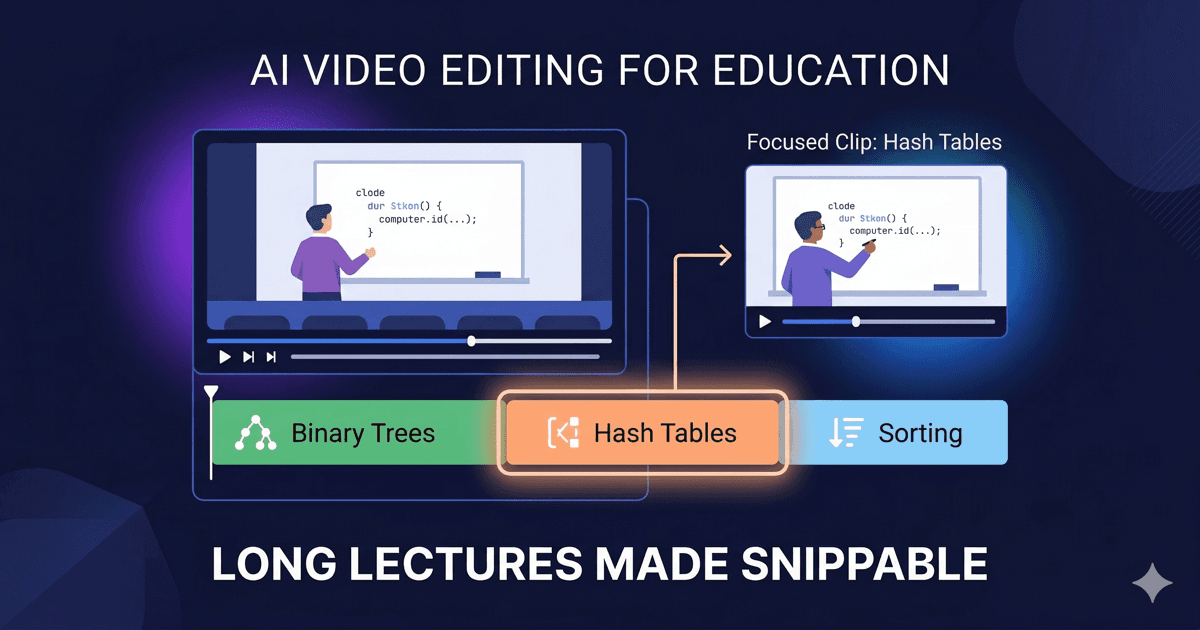
The Problem: Lectures Are Long, Students Need Short
You recorded a 50-minute lecture on data structures. It covered arrays, linked lists, trees, hash tables, graphs, and sorting algorithms. Midterm is next week, and students are asking for review material on trees and sorting.
Your options: re-record two short videos (time you don't have), point students to timestamps in the full recording (they won't watch), or manually scrub through the video to find and clip the relevant sections (tedious and error-prone).
This is the daily reality for educators who record lectures. The content exists — finding and extracting it is the bottleneck.
How Topic-Based Editing Solves This
Import your lecture recording into NexClip AI. The app transcribes the audio and maps every sentence to precise timestamps. Then it identifies every topic discussed — not just keywords, but coherent subject areas like "binary search trees" or "quicksort vs mergesort."
You see the full list of topics. Select "Trees" and "Sorting Algorithms." Set a target duration — say, 5 minutes each. The app assembles two focused clips, pulling only the sentences relevant to each topic, in the order they were spoken.
The result: two clean review clips that cover exactly what your students need. No tangents about arrays. No random asides. Just the topic, complete and coherent.
Why This Matters for Education
One lecture, many clips
A single 60-minute recording with 8 topics becomes 8 focused review clips. Each one covers a specific subject. Students watch only what they need — no more skipping through hour-long videos to find the 5 minutes that matter.
Accuracy over engagement
AI auto-clipping tools optimize for "interesting" moments — emotional peaks, dramatic pauses, raised voices. Educational content needs accuracy, not entertainment. Topic-Based Editing optimizes for content relevance, keeping complete sentences and maintaining the logical flow of your explanation.
Works with what you already record
Zoom recordings, OBS screen captures, camera footage — any video file works. You don't need to change how you teach or record. Just import the file and let the app find the topics.
Export to your existing workflow
Export clips as MP4 for your LMS, or as FCPXML/Premiere XML if you want to refine the edit in a professional editor before publishing. Subtitles (SRT) are generated automatically.
A Real Workflow Example
Record your 50-minute lecture on Zoom as usual.
Import the .mp4 into NexClip AI. Transcription takes about 2 minutes.
Review topics. The app shows: "Binary Trees (8 min)," "Hash Tables (6 min)," "Graph Traversal (12 min)" — all automatically extracted.
Select topics and set target durations. Want a 3-minute review clip on Binary Trees? Done.
Export as MP4 with burned-in subtitles. Upload to your LMS. Students have focused review material before the next class.
Built for Educators Who Record
- • University professors creating topic-specific review clips from recorded lectures
- • Online course creators breaking long sessions into digestible modules
- • Corporate trainers extracting specific procedures from training recordings
- • Workshop facilitators creating per-topic archives from multi-hour sessions
- • Conference organizers turning keynotes into topic-specific highlight clips
Frequently Asked Questions
Can I create clips from a recorded Zoom lecture?
Yes. NexClip AI works with any video file — screen recordings, Zoom exports, OBS captures, or camera footage. Import the file, and the app handles transcription, topic extraction, and clip generation.
How does it handle lectures with multiple topics?
The AI automatically identifies every distinct topic discussed in your lecture. You see the full list, select the ones you want, set a target duration, and the app generates a focused clip covering only those topics — keeping sentences intact and in order.
Is it accurate enough for educational content?
Unlike AI auto-clipping tools that optimize for engagement, Topic-Based Editing preserves complete sentences and maintains narrative flow. Timecodes are corrected at the word boundary level for natural-sounding cuts. You can also export to Final Cut Pro or Premiere Pro for further refinement.
See It in Action
Try It with Your Next Lecture
Try Free for macOSLearn more about Topic-Based Editing•Compare with AI Auto-Clipping

NexClip AI
Topic-Based Editing: Pick your topics. Get your clips.
Related Articles
Building a macOS Video Editor with Rust + UniFFI
Use CaseTopic-Based Editing for Podcasters
Comparisonvs AI Auto-Clipping (OpusClip)
ComparisonTopic-Based vs Text-Based vs Timeline Editing
Comparisonvs Munch & Vizard
Comparisonvs Chat-Based Editing (Riverside, Cutback)
Comparisonvs Prompt-Based Editing
Comparison7 Best OpusClip Alternatives for Long-Form Video