
Topic-Based Editing for Podcasters: Extract Key Segments by Topic
Your 2-hour podcast episode covers 12 topics. Your audience wants clips about specific ones. AI auto-clipping gives you whatever it thinks is "engaging." Topic-Based Editing gives you exactly the topics you choose.
The Podcaster's Repurposing Problem
You recorded a 90-minute interview. The guest shared an incredible story about their first product launch at minute 73. Your producer wants a clip about the fundraising discussion for the newsletter. Your social media manager needs three platform-specific teasers. And you want to pull the segment where your guest contradicts conventional wisdom about pricing.
Each of these is a different topic, buried somewhere in 90 minutes of conversation. Finding them means scrubbing, listening, marking timestamps, cutting — for every single clip, from every single episode.
Most podcasters either skip repurposing entirely (leaving value on the table) or outsource it to editors who charge per clip. Either way, the bottleneck is the same: finding the right moments takes longer than the edit itself.
How Topic-Based Editing Changes the Workflow
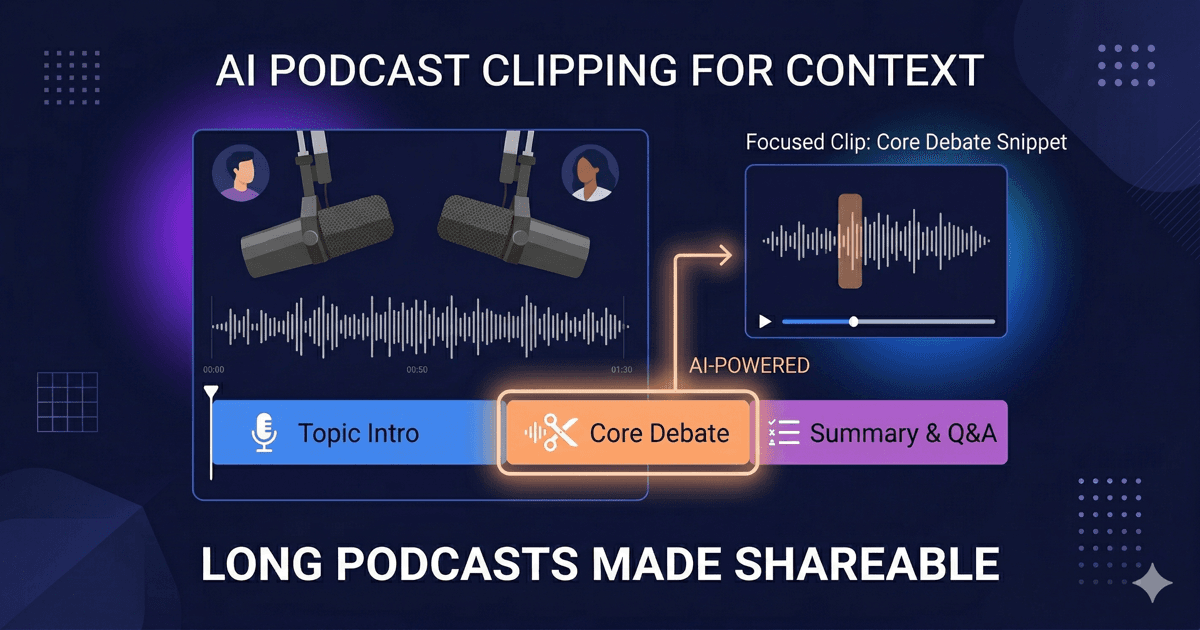
Import your episode. NexClip AI transcribes the full conversation with speaker diarization — it knows who said what. Then it extracts every topic discussed: "First Product Launch Story," "Series A Fundraising," "Pricing Strategy Debate," "Hiring Mistakes" — all automatically identified with timestamps and durations.
You see the full topic list. Pick "Pricing Strategy Debate." Set 2 minutes. The app pulls every sentence where both speakers discussed pricing, maintains the conversational flow, and delivers a focused clip that makes sense on its own.
Need the fundraising segment too? Select that topic. Different clip, same episode, same effort. What used to take hours of scrubbing now takes minutes of choosing.
Why AI Auto-Clipping Falls Short for Podcasts
AI auto-clipping tools scan for "viral moments" — laughter, emotional peaks, raised voices. That works for entertainment content. But podcast conversations are nuanced. The most valuable insight might come in a calm, measured explanation. The key disagreement might happen in a quiet back-and-forth.
More importantly, auto-clippers don't know your audience. Your newsletter subscribers want the fundraising deep-dive. Your Twitter followers want the contrarian take. Your YouTube audience wants the full story. One "highlight reel" can't serve all three — but three topic-specific clips can.
What Podcasters Use It For
Social media clips
Select the most shareable topic, set 60 seconds, export with subtitles. Different clips for different platforms from the same episode.
Newsletter segments
Pull the deep-dive discussion your subscribers care about. Embed a focused 3-minute clip instead of linking to a 90-minute episode.
YouTube companion clips
Turn one long interview into 5 standalone topic videos. Each one ranks for different keywords and reaches different audiences.
Guest-ready clips
Send your guest a focused clip of their best answer. They share it with their audience — built-in cross-promotion.
Works with Audio-Only Files
NexClip AI supports MP3, WAV, M4A, FLAC, and other audio formats directly — no need to convert to video first. Import your raw podcast recording, and the app handles the rest. For audio-only files, you get the transcription, topic extraction, and timeline editing. Export the audio clip or generate a video with waveform visualization and subtitles.
Frequently Asked Questions
Can I use audio-only files like MP3 or WAV?
Yes. NexClip AI supports audio-only files (MP3, WAV, M4A, FLAC) in addition to video files. Import your podcast recording directly — no video conversion needed.
How does it handle multi-guest conversations?
The AI identifies speakers through diarization and extracts topics across the full conversation. When you select a topic, the clip includes all speakers who contributed to that discussion, maintaining the natural back-and-forth.
Can I create clips for different social media platforms?
Yes. Set different target durations for different platforms — a 60-second clip for Instagram, a 3-minute clip for YouTube, a 15-second teaser for TikTok — all from the same topic selection. Export as MP4 with optional burned-in subtitles.
See It in Action
Try It with Your Latest Episode
Try Free for macOSLearn more about Topic-Based Editing•See how educators use it

NexClip AI
Topic-Based Editing: Pick your topics. Get your clips.
Related Articles
Building a macOS Video Editor with Rust + UniFFI
Use CaseTopic-Based Editing for Educators
Comparisonvs AI Auto-Clipping (OpusClip)
ComparisonTopic-Based vs Text-Based vs Timeline Editing
Comparisonvs Munch & Vizard
Comparisonvs Chat-Based Editing (Riverside, Cutback)
Comparisonvs Prompt-Based Editing
Comparison7 Best OpusClip Alternatives for Long-Form Video